
Chess Online Playing
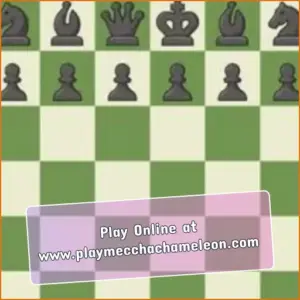
MIKMOKChess Online Playing puts a complete chessboard in your browser and lets you choose how you want to compete. You can enter a ranked match against a real opponent, practice against adjustable computer difficulty, create a private room, or share one device with a friend.
The interface keeps the board easy to read. Selecting a piece highlights it in yellow, while grey dots show the legal destination squares. This is especially useful for beginners who are still learning how bishops, rooks, knights, and other pieces move.
Experienced players can focus on rating points and stronger AI levels, while casual players can change the board theme and begin a local match without creating a complicated setup. The game runs on desktop and supported mobile browsers with simple click-or-tap controls.
What Is Chess Online Playing?
Chess Online Playing is a free browser chess game developed by MIKMOK. It combines three useful ways to play: online ranked matches, practice against computer opponents, and local pass-and-play games for two people using the same device.
The rules follow the familiar structure of chess. White moves first, both sides take turns moving one piece, and the objective is to place the opposing king in checkmate. A timed game can also end when one player’s clock reaches zero.
The game includes multiple AI difficulty settings, private rooms, rating updates, legal-move indicators, and customizable board and piece themes. It is designed for quick access without requiring a standalone PC installation.
Available Game Modes
Online Ranked Matches
Ranked mode connects you with another player through online matchmaking. Your result affects your rating, giving you a simple way to track performance across competitive games.
Do not focus only on the opponent’s rating. Use the opening moves to understand their style, protect your king, and avoid making a rushed attack simply because the match is timed.
Play Against the Computer
The AI mode offers several difficulty levels, ranging from beginner-friendly opposition to a stronger master setting. Start with a level that gives you enough time and space to recognize basic threats.
When you begin winning consistently, increase the difficulty by one step. Moving gradually through the levels is usually more useful than choosing the strongest opponent immediately and losing before you can understand the position.
Private Friend Matches
You can create a private online room and invite a friend to play. This mode is useful when you want a direct match without being paired with a random opponent.
Both players need a stable connection for an online room. The host should share the room information provided by the game rather than leaving the public matchmaking system open.
Local Pass-and-Play
The local mode allows two people to take turns on the same phone, tablet, or computer. After one person makes a move, the device can be passed or rotated toward the other player.
This option does not require separate player accounts. However, an internet connection may still be needed to open and load the browser game.
How a Chess Match Works
A standard game begins with 16 pieces on each side: eight pawns, two knights, two bishops, two rooks, one queen, and one king. Every piece follows a different movement pattern, so coordinating them is more important than attacking with a single piece repeatedly.
The central squares influence a large part of the board. Occupying or attacking the center gives your pieces more space and can restrict the opponent’s development. At the same time, moving too many pawns early can leave permanent weaknesses.
A king is in check when it is directly threatened by an opposing piece. The player must respond by moving the king, capturing the attacker, or blocking the attack when possible. Checkmate occurs when none of those legal responses are available.
How to Play Chess Online Playing
- Select online ranked, computer, private room, or local pass-and-play mode.
- Choose an available AI difficulty or invite an opponent when required.
- Click or tap one of your pieces to select it.
- Review the grey dots showing its available legal moves.
- Click or tap the destination square to complete the move.
- Watch for threats against your king before ending each turn.
- Keep an eye on the chess clock during timed matches.
- Checkmate the opposing king, win on time, or accept the final match result.
Chess Online Playing Controls
The game does not require keyboard shortcuts. All essential actions can be completed with a mouse or touchscreen.
- Click or tap a piece: Select it and display a yellow highlight.
- Click or tap a destination: Move the selected piece to a legal square.
- Grey dots: Show the legal destinations available to the selected piece.
- Themes menu: Change the appearance of the board and chess pieces.
- On-screen menus: Select a mode, create a room, choose AI difficulty, or return to the main menu.
If a piece refuses to move, the selected destination may be illegal or the move may leave your king in check. Select another square marked by the interface.
Board Themes and Legal-Move Hints
The Themes menu lets you change the appearance of the board and pieces without altering the rules. Choose a design with clear contrast so that occupied squares, legal moves, and threatened pieces remain easy to see.
When you select a piece, its square turns yellow and grey dots appear on the available destinations. These indicators help new players learn movement rules and reduce accidental clicks.
The hints show where a piece can legally move, but they do not tell you whether a move is strategically safe. Before choosing a highlighted square, check whether the destination can be attacked by an opponent.
Basic Piece Movement
- Pawn: Moves forward one square, with a two-square option from its starting position, and captures diagonally.
- Knight: Moves in an L shape and can jump over other pieces.
- Bishop: Moves diagonally across any number of open squares.
- Rook: Moves horizontally or vertically across open lines.
- Queen: Combines the horizontal, vertical, and diagonal movement of the rook and bishop.
- King: Moves one square in any direction and cannot move onto an attacked square.
Special rules such as castling, pawn promotion, and en passant can create additional legal moves when their conditions are satisfied.
Beginner Strategies for Better Positions
- Develop your pieces: Bring knights and bishops into useful positions instead of moving the same piece repeatedly.
- Control the center: Challenge central squares with pawns and pieces to gain more movement options.
- Protect your king: Castle when it improves king safety and does not create another immediate weakness.
- Check for loose pieces: Before every move, look for pieces that are attacked and not adequately defended.
- Avoid early queen adventures: Moving the queen too soon can allow the opponent to develop while attacking it.
- Use all your pieces: An attack is stronger when several pieces participate and defend one another.
- Watch the clock: Use enough time to avoid obvious mistakes without spending too long on routine moves.
A Simple Check Before Every Move
Before selecting a move, ask three short questions:
- Is my king currently in check?
- What did my opponent’s last move attack?
- Will the piece I move be safe on its destination square?
This brief check prevents many beginner mistakes. It is more valuable than trying to calculate a long combination while overlooking a piece that can be captured immediately.
Common Tactical Patterns
Fork
A fork occurs when one piece attacks two or more targets at the same time. Knights are well known for forks because their unusual movement can create threats that are difficult to answer together.
Pin
A pinned piece cannot move safely because doing so would expose a more valuable piece or the king behind it. Look along open files, ranks, and diagonals for possible pins.
Skewer
A skewer attacks a valuable piece that must move, exposing another piece behind it. It resembles a pin, but the more valuable target is placed in front.
Discovered Attack
A discovered attack appears when one piece moves away and reveals an attack from a rook, bishop, or queen behind it. These moves can create two threats during the same turn.
Back-Rank Checkmate
A king blocked by its own pawns can become vulnerable to a rook or queen attacking along the back rank. Creating an escape square can prevent this common pattern.
Playing Against Stronger AI
Higher AI settings punish unprotected pieces more consistently and respond more accurately to direct attacks. Instead of attempting traps that depend on an obvious mistake, build a safe position and improve the placement of your weakest piece.
After a loss, think about the first moment when the position became difficult. You do not need a built-in analysis database to learn something useful. Identifying one missed threat or unnecessary pawn move can improve the next game.
Game Specifications
| Specification | Details |
|---|---|
| Game Title | Chess Online Playing |
| Developer | MIKMOK |
| Added to Playgama | February 23, 2026 |
| Last Listed Update | June 2026 |
| Technology | Browser-based game; engine not publicly disclosed |
| Platforms | PC, Android, and iOS web browsers |
| Orientation | Portrait |
| Game Modes | Online ranked, AI, private rooms, and local pass-and-play |
| Languages | English, German, Russian, and Turkish |
| Input | Mouse and touchscreen |
The game is credited to MIKMOK on the Chess Online Playing distribution page. February 23, 2026 is the date it was added to Playgama.
Browser and Mobile Availability
Chess Online Playing runs directly in supported web browsers without requiring a standalone installation. It is listed for PC, Android, and iOS devices.
Desktop players can use a mouse, while mobile users can select pieces and squares by tapping the screen. A portrait layout may feel more natural on a phone, although a larger screen makes it easier to review the entire position.
An active internet connection is required for matchmaking and private online rooms. The hosting page also needs a connection to load the AI and local modes.
Ratings and Saved Progress
Ranked results can update your online rating, allowing you to compare your performance over time. However, the Playgama listing marks general game-progress saving as unavailable.
Do not expect an unfinished local or AI position to remain available after closing the browser. Signing in may be required for account-related ratings or platform features.
Games Similar to Chess Online Playing
- Chess Online Multiplayer: Focus on live matches against other players with competitive ratings and timed games.
- Master Chess: Play traditional chess against the computer or another person with a simple board interface.
- Chess with a Computer: Practice complete games against AI opponents with different difficulty settings.
- Chess Pro: Test your tactical and positional decisions against stronger computer opposition.
Frequently Asked Questions
Is Chess Online Playing free?
Yes. The game can be launched for free through a supported browser without purchasing or installing separate software.
Can I play against real opponents?
Yes. Online ranked matchmaking connects you with real players, and the result can update your rating.
Can I play against the computer?
Yes. Several AI difficulty levels are available, ranging from beginner-friendly opposition to a stronger master setting.
Can I invite a friend?
Yes. You can create a private online room or use local pass-and-play to take turns on the same device.
Do I need an account?
Local pass-and-play does not require separate player accounts. Online ratings and account-based features may require signing in through the hosting platform.
Can I play on mobile?
Yes. The game supports Android and iOS browsers with touchscreen controls and a portrait-oriented interface.
Do I need to download anything?
No. Chess Online Playing runs directly in a compatible web browser and does not require a standalone application.
How do the legal-move hints work?
Selecting a piece highlights it in yellow, while grey dots show the legal destination squares currently available.
Are the matches timed?
Online games use a chess clock. Check the mode-selection screen for the time options available in the current version.
What happens if my connection drops?
A lost connection may interrupt or forfeit an online match. No guaranteed reconnection period is publicly documented.
Does the game save unfinished matches?
General cloud saving is not listed. An unfinished AI or local game may be lost after closing the browser or leaving the page.
How can a chess game end?
A game can end through checkmate, resignation, timeout, stalemate, insufficient material, an agreed draw, or another draw condition recognized by the game.
Choose Your Next Opponent
Chess Online Playing offers enough variety for different types of players. Beginners can learn with legal-move indicators and easier AI settings, while experienced players can enter ranked matches and work on improving their rating.
Start with a mode that matches your current level, protect every piece before launching an attack, and use each finished game to identify one decision you can improve. Small corrections are often more valuable than memorizing a long list of opening moves.